AI Image Upscaler - Upscale Images 2x, 4x, and 8x Online
Enlarge product shots, portraits, screenshots, and legacy photos with our AI image upscaler. Standard mode keeps processing fast. Pro mode delivers sharper textures and stronger facial detail for demanding shots.
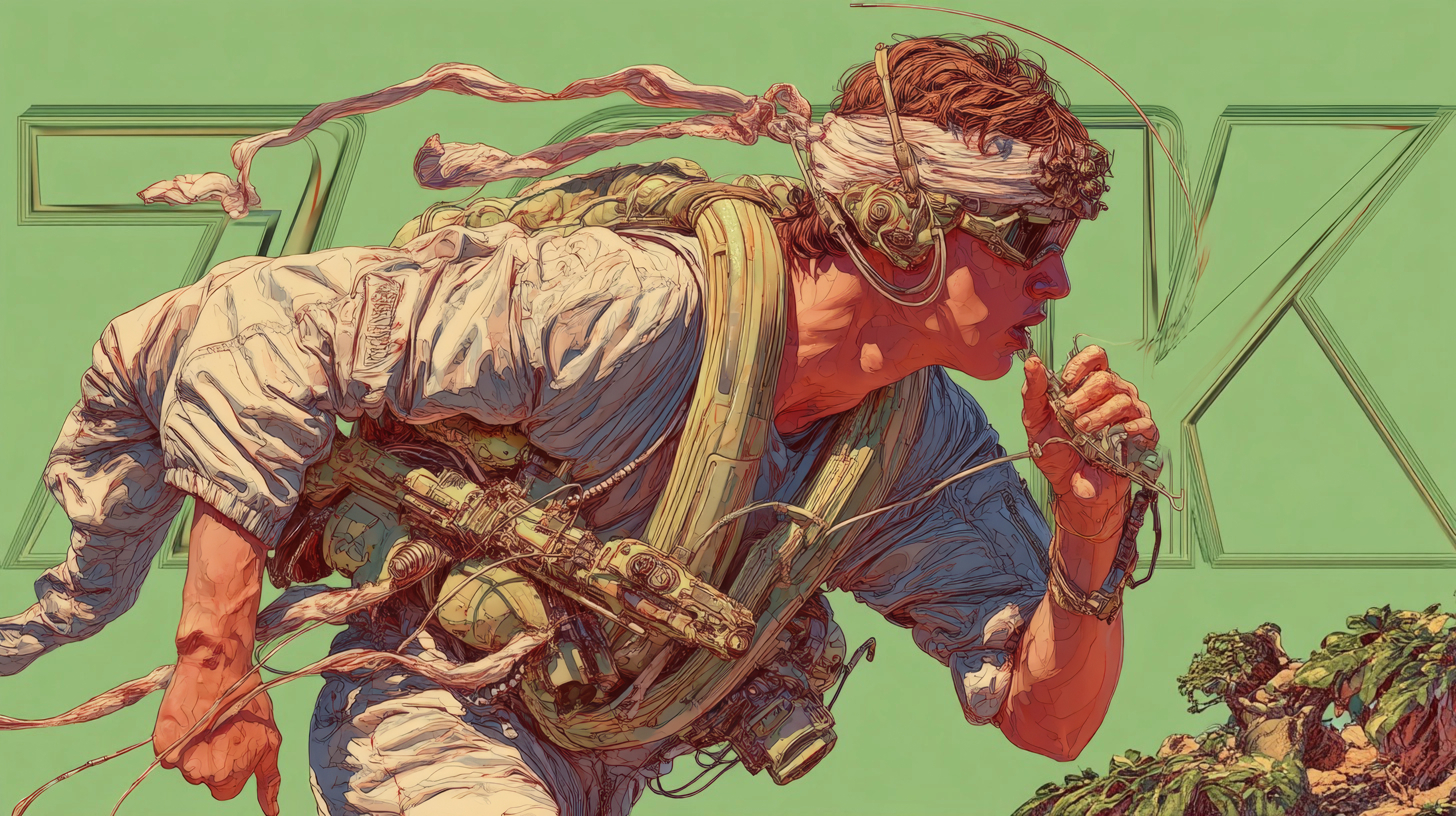
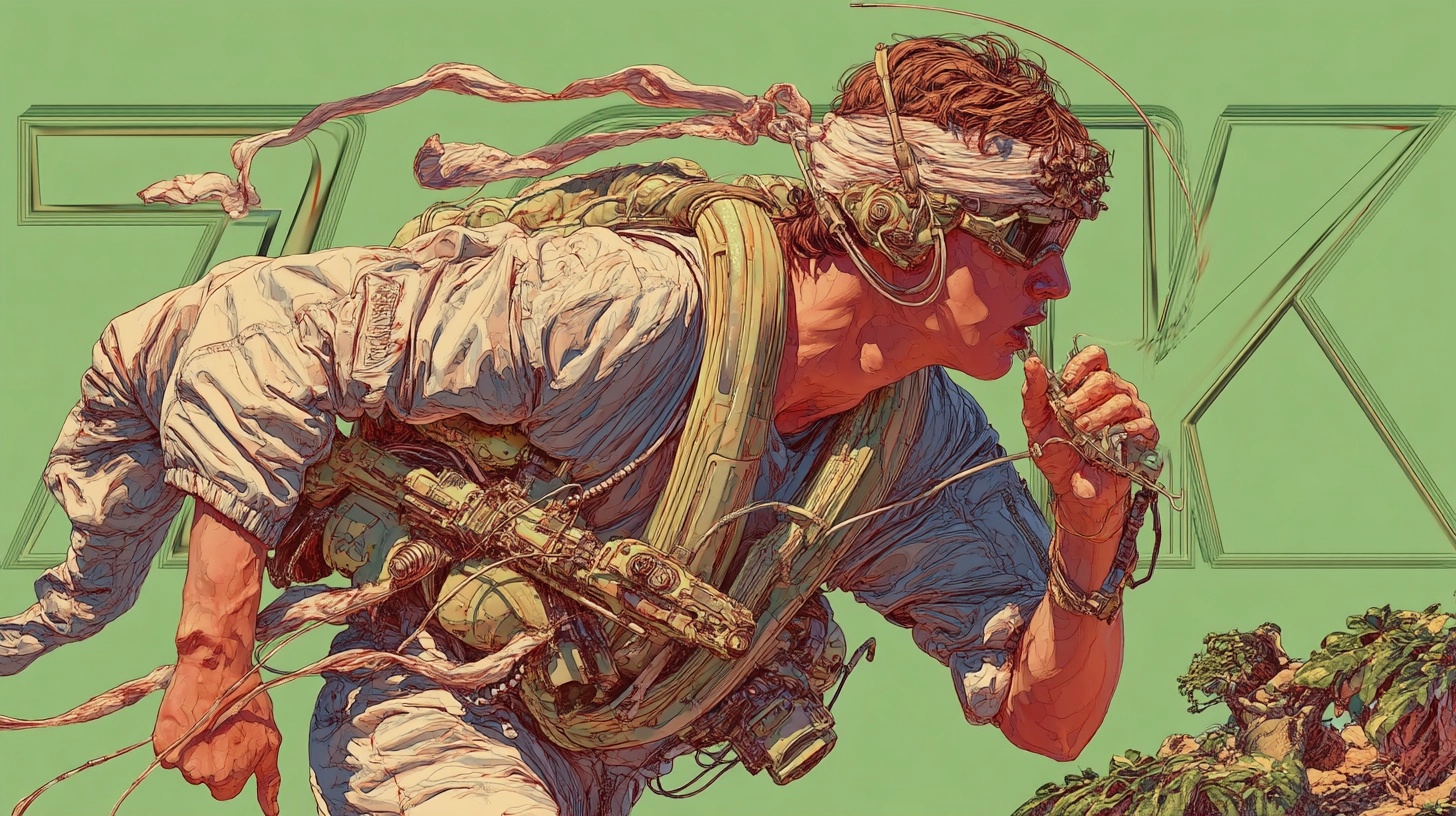
Pro 4x
A featured upscale sample is loaded by default. Upload your own image any time.
Fast AI upscaling with face enhancement enabled by default.
Higher quality AI upscaling with stronger detail and face recovery.
Drop an image here or click to upload
Supports JPG, PNG, and WebP. Sign in before processing.
Fixed upscale tiers for predictable output size
Fast turnaround for standard and premium runs
Pick Standard for speed or Pro for stronger detail
Default face cleanup helps portraits and profile shots
How to upscale an image online with AI
A simple three-step workflow for fast, high-quality photo enlargement.
Upload your source image
Start with a portrait, product shot, screenshot, or scanned photo. Supports JPG, PNG, and WebP formats.
Choose mode and scale
Pick Standard or Pro, then set 2x, 4x, or 8x output. Standard is faster; Pro recovers finer detail.
Render and download
The AI processes your image in seconds. Review the enlarged result and download the final file.
Why use ImgUnblur AI Image Upscaler
Built for practical photo enlargement, not vague one-click promises.
Two dedicated processing models
Switch between a faster everyday mode and a stronger Pro mode depending on how much detail recovery the photo needs.
Fast single-image workflow
Upload, enlarge, and download in one focused panel without extra setup or configuration.
Works across common photo types
Portraits, ecommerce shots, screenshots, and scanned prints all benefit from fixed 2x, 4x, and 8x output modes.
Transparent credit pricing
Standard always costs 2 credits and Pro always costs 10 credits. No surprises per run.
Account-linked processing
Each run is tied to your credits instead of anonymous third-party uploads.
Sharper output with face recovery
Both modes target cleaner facial structure. Pro adds heavier restoration for demanding portrait shots.
Where image upscaling helps most
Use the same tool for routine enlargements, presentation assets, and archive recovery.
Portrait photos
Recover sharper faces before sharing or printing
Portraits often lose eye detail and skin texture after cropping or messaging app compression.
Enlarge the frame with face enhancement enabled so the final photo reads cleaner at larger sizes.
Great for profile photos, family albums, and creator headshots.
Products and objects
Make listing photos look larger and cleaner
Marketplace photos often need bigger outputs without looking artificially stretched.
Use 4x or 8x output to increase resolution while preserving edges, contours, and surface detail.
Useful for ecommerce catalogs, product ads, and print-ready creatives.
Screenshots and text-heavy captures
Improve legibility when the source is too small
Low-resolution screenshots become muddy fast when reused in docs, decks, or tutorials.
Enlarge the source before reuse so UI edges and key text blocks stay readable.
Perfect for presentations, blog tutorials, product docs, and support articles.
Scanned and legacy photos
Create larger files for cleanup or reprint prep
Old scans may be too small for restoration work, reframing, or modern displays.
Run the image upscaler first, then move into restoration or editing with a higher-resolution starting point.
Best for family archives, printed keepsakes, and digitized historical photos.
AI Image Upscaler FAQ
Common questions about enlarging photos with our AI upscaler.
Need a larger, sharper photo now?
Run the AI image upscaler, compare the result instantly, and download the enlarged file in one place.

IMGUNBLUR